Article
Turn a Picture into a Scroll Animation with AI and Anime.js
Start with one picture, create five consistent reference images, and use AI to build a scroll-driven website animation. Includes the complete prompts and a checklist for refining the result.
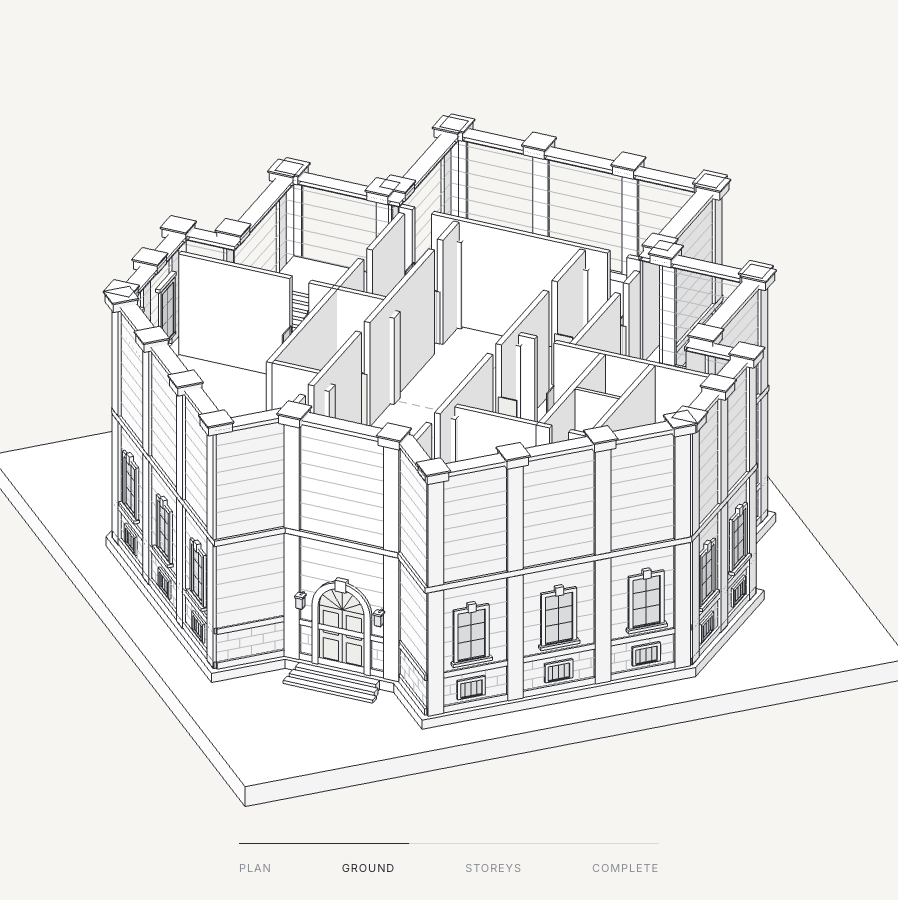
A building rises floor by floor as you scroll. A product opens to reveal its parts. A gadget assembles itself, then holds on the finished design. These are useful ways to show how something fits together on a website.
The workflow in this guide starts with one picture. You use an AI image tool to plan five stages of a transformation, then give those references to an AI coding tool to build the animation. Anime.js controls its timing and scroll progress.
There are three parts: make the pictures, build the animation, and refine the result. The prompts below give you a starting point for each one.
What you need before you start
- One clear picture of the object you want to animate: a building, product, gadget, or another object with recognisable parts.
- An AI image tool that accepts a reference picture.
- An AI coding tool opened in your website’s project folder. If you are starting from an empty folder, the build prompt asks it to create a minimal Vite project.
Choose an object with a transformation you can describe. A box can unfold, a device can open, and a building can assemble in stages. Start with one object and one movement so you have a clear result to judge.
1. Plan five views of the same transformation
Your five pictures should show the start, roughly 25%, 50%, and 75% of the transformation, and the finished object. They give the coding tool concrete poses to work towards.
Keep the camera angle, framing, object size, materials, and lighting consistent. The parts should move between pictures while the object remains recognisably the same. If a window appears from nowhere or a panel changes shape, fix that picture before moving on.
These pictures are pose references. A flattened image does not contain separately movable parts, and five stills alone do not provide all the frames of a smooth animation. The coding step needs to recreate the object using shapes, geometry, or suitable separate image layers.
Copy the first prompt into your image tool, replace [YOUR OBJECT] with your subject, and attach your reference picture. If the tool can only produce one image at a time, begin with the starting pose and use it as the reference for the next stage.
Create a premium visual concept and five-image transformation sequence for [YOUR OBJECT]

PURPOSE

These images will serve as key-pose references for an animation built with Anime.js on my website. Generate images only-no code or website.

CREATIVE DIRECTION

Choose an eye-catching transformation appropriate to the object, with a clear starting state and a satisfying ending state. Consider unfolding, opening, expanding, rotating, or assembling. Choose the movement that best reveals the object’s character and construction. Avoid relying on a simple colour change or fade. Decide the materials, colour palette, lighting, and background. Use a polished 3D product-render aesthetic with believable depth, refined surfaces, and subtle reflections. Keep the design striking, readable on a phone, and practical to recreate as separately animated components.

COMPOSITION

Show one centred object against a clean, uniform background. Choose a fixed camera angle that clearly reveals the transformation. Use a square canvas with enough space for every stage. Keep the camera distance, perspective, framing, and object anchor position identical throughout. Do not resize individual poses to fill the frame.

SEQUENCE

Plan the complete object and its movement before generating:

1. Starting state.

2. Transformation approximately 25% complete.

3. Transformation approximately 50% complete.

4. Transformation approximately 75% complete.

5. Ending state. Make each stage a coherent step in the same transformation. Preserve component identity, count, shape, and materials. Hidden components should appear naturally as they become visible. Establish the design in the first image, then use it as the visual reference for subsequent images wherever reference-image input is supported.

CONSISTENCY AND CLARITY

Keep colours, textures, background, light positions, and exposure consistent. Only change component positions and orientations required by the transformation. Allow shadows and reflections to change naturally with movement. Keep component boundaries clear and the entire object sharply focused. Avoid intersecting solid parts, unexplained additions, disappearing components, motion blur, heavy glow, smoke, and particles.

OUTPUT

Deliver five separate high-resolution images with identical dimensions. Do not combine them into a collage or grid. No text, labels, logos, watermarks, borders, or unrelated objects. If only one image can be generated at a time, create the starting frame first and retain the same design specification for the remaining frames. These are visual references. Do not claim that flattened images contain editable layers or that five key poses alone create a smooth animation.
2. Check the pictures before asking for code
Put the five images next to each other and look for changes that are unrelated to the movement. Does the camera drift? Does the object become larger? Do the materials or number of components change? Those inconsistencies make the intended transformation harder to interpret.
Regenerate only the stages that need fixing, using the approved images as references where your tool supports them. Name the files in order, such as 01-start through 05-finished, so the coding tool can follow the sequence.
3. Build the scroll-driven animation
Open your coding tool in the website’s folder, attach the five images, and paste the second prompt. It asks the tool to inspect your existing site, choose a rendering approach, and build a reusable component that fits the project.
For an illustrated object with flat movement, layered SVG may be enough. When the transformation needs real depth, changing perspectives, or curved surfaces, the prompt allows Three.js. Separate image layers can also work when suitable assets exist and their movement will not reveal missing surfaces.
The aim is to move the object’s components continuously between the reference poses. A sequence of fades between the five pictures will not reproduce that movement. Ask the coding tool to explain any details it cannot recreate faithfully.
Anime.js provides scroll observers that can synchronise a timeline with scrolling. The build prompt uses that mechanism, with smoothing, to connect the animation to a pinned section. See the official onScroll documentation.
Implement a polished, scroll-driven animation on my website using Anime.js, based on the attached object images.

GOAL

Recreate the object and its transformation as a smooth, continuous animation whose progress is driven by the user's scroll position (like the hero on animejs.com). Treat the images as visual references for the starting state, intermediate poses, and ending state. Inspect my existing website first. Match its framework, layout, and styling, and integrate the animation without replacing unrelated content. If the project is empty, scaffold a minimal Vite project and build a simple hero page around the animation, with at least one section after it.

CHOOSE THE APPROPRIATE APPROACH

Inspect the images and choose the simplest rendering approach that can convincingly reproduce the object:

- Use layered SVG for illustrated objects and transformations that work in two dimensions.

- Use Three.js with Anime.js for objects that require real depth, curved surfaces, changing perspective, or realistic lighting.

- Use separate image layers only if suitable assets exist and their movement does not expose missing surfaces. Anime.js should control the animation timing and progression. Do not assume that flattened images contain editable components. Create the necessary SVG shapes or procedural 3D geometry where practical. If essential assets cannot be recreated faithfully, explain the specific limitation before substituting a noticeably different design.

VISUAL FIDELITY

Preserve the reference object's silhouette, proportions, materials, colours, and identifiable components. Give each moving component its own transform and an appropriate pivot point. Maintain consistent construction throughout the transformation. Do not substitute a slideshow, crossfade, whole-image zoom, or rotation for the object's actual transformation.

ANIMATION

Build one coordinated, seekable Anime.js timeline. Use the supplied images as pose guides, interpolating continuously between them. Do not treat the reference images as a complete frame sequence. Use:

- Natural acceleration and deceleration.

- Subtle staggering between related components.

- Believable hinge, rotation, sliding, or assembly movement.

- A brief hold on the starting pose and on the final reveal.

- Restrained secondary motion where it improves the result. Keep the camera stable unless the references require movement. Avoid unnecessary bouncing, jitter, abrupt transitions, and intersecting solid parts. Parts that haven't appeared yet must be hidden, not floating in place. Seeking must be deterministic: jumping to any time, forwards or backwards, must produce exactly the same frame as playing to that time.

SCROLL-DRIVEN PLAYBACK

- Link the timeline to scroll with Anime.js onScroll (ScrollObserver) using smoothed sync (e.g. sync: 0.4), so it eases towards the scroll position instead of stepping with the mouse wheel.

- Place the animation in a tall scroll section (about 300-350vh) with a sticky, full-viewport inner container, so the object stays pinned while scrolling builds it.

- Map the section's scroll range (enter 'top top' → leave 'bottom bottom') to the full build: start pose at the top, finished object at the bottom. Scrolling up must reverse it smoothly.

- In scroll mode the timeline plays the build once and does not loop.

- On desktop, pin the hero copy beside the animation. On mobile, let the copy scroll normally, then pin the animation.

- Show a small progress indicator with clickable stage labels that smooth-scroll to each stage, and a "scroll" hint that fades out once scrolling starts.

- Release the pin cleanly into the following content when the build completes.

- Keep an optional autoplay mode (with a seamless loop that returns to the starting pose, matching position and motion at the boundary) for use without scroll.

WEBSITE INTEGRATION

Create a reusable, responsive component with a small API (play, pause, seek, destroy, and a scroll option). Keep animation styles scoped to the component. Avoid global CSS changes and duplicate dependencies. Handle resizing (including refreshing the scroll observer), pause unnecessary work when offscreen or when the tab is hidden, and clean up timelines, scroll observers, listeners, and rendering resources when the component is removed. Respect prefers-reduced-motion: remove the tall scroll section, show a strong static pose of the finished object with an optional play control, and switch modes if the preference changes.

PERFORMANCE

Aim for stable 60 fps on capable devices, including while scrolling, without promising it universally. Render only when the timeline changes. Keep geometry, effects, and animated elements economical. For 3D, cap rendering resolution appropriately for mobile devices. Load required assets before starting so the object does not appear in incomplete pieces.

VERIFICATION AND DELIVERY

Implement the working animation, not just an explanation. Run it in the browser and check:

- Visual similarity to the supplied references.

- Smooth movement through intermediate poses.

- Scroll position maps correctly to progress (e.g. 60% through the section = 60% built), smoothing works, and scrolling up reverses cleanly.

- Backward seeks produce the same frames as forward playback.

- Progress UI stays correct during holds where nothing moves.

- The pin releases correctly into the next section.

- Autoplay loop behaviour, if included.

- Desktop and mobile layout, with no horizontal scroll.

- Reduced-motion behaviour.

- Browser errors and integration issues. Provide a working preview and identify the files changed. Briefly explain how to adjust scroll length, smoothing, duration, colours, and component size. Clearly state any visual compromises. Do not claim that performance or behaviour was tested unless it actually was.
4. Test the experience in both directions
Scroll slowly through the preview, then scroll back up. Jump between stages as well. Parts should return to the same positions at the same timeline progress, even when you reach that point from the opposite direction.
- Check the starting pose, intermediate poses, and final reveal against your reference images.
- Check that scrolling moves the timeline smoothly and that the pinned section releases into the next part of the page.
- Check the layout on a phone: the object, text, and stage controls should fit without horizontal scrolling.
- Check reduced-motion mode. The prompt asks for a static finished pose without the long pinned scroll section, plus an optional play control.
- Ask the coding tool to report the checks it actually ran, any browser errors, and any visual compromises. A performance target is not a measured result.
With smoothing enabled, the animation can take a moment to catch up after you stop scrolling. Brief holds and easing also affect how much visible movement happens within each part of the timeline. Judge the progress indicator against timeline progress, and the object against its intended poses.
5. Refine one thing at a time
Once the basic transformation works, use these follow-up prompts to try a spin, a closer view, labels, or a different layout. Make one change, scroll through the preview again, and decide whether it helps before adding another.
Add a smooth spinning animation to the object while it builds, so we can see it from more sides. Keep the spin tied to the scroll, and end on the same angle as the final picture.Zoom in on the object during the build so the small details are easy to see, then zoom back out at the end to show the whole thing.Add pointer arrows with short labels that describe each part of the object. Show each label when its part appears, and keep them easy to read on a phone.Move the object to the side, with the text next to it on desktop. On mobile, place the text above the animation and keep the object centred.A spin can expose surfaces that were hidden in the original pictures. If those details matter, provide another reference or ask the tool to explain how it will reconstruct them. Keep labels short enough to read at the size visitors will actually see.
Keep the prompts for your next project
Use the downloadable PDF as a reference while you work. It contains the original three-part prompt guide and screenshots of a building at the start, middle, and end of its scroll animation.
Download the original prompt guide (PDF)For the companion code, visit the Anime.js testing project on GitHub.
Start with a clear transformation, get the reference images consistent, and check the result in the browser. Those decisions will shape the animation more than adding extra effects at the end.